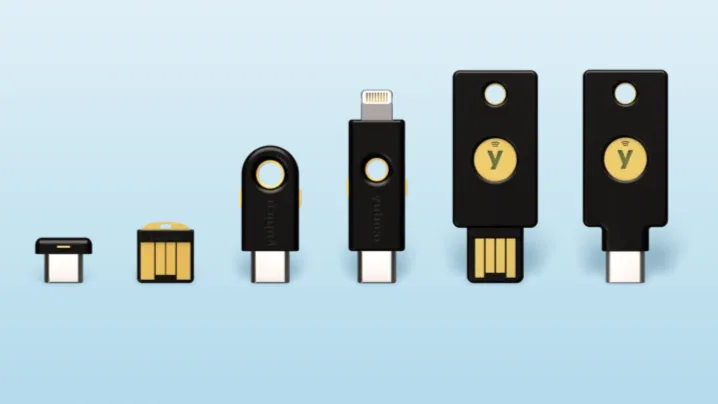
This Tutorial will help you to use YubiKey with SSH & GPG on Windows.
Download and install PuTTY.
GPG4Win has built-in support for SSH authentication.
Step 1
Download and install GPG4Win.
Step 2
Start the gpg-connect-agent.exe by running the following command in a PowerShell terminal or Command Prompt:
gpg-connect-agent /bye
Step 3
Enable SSH support by editing the gpg-agent.conf file located in the gnupg directory %APPDATA%\gnupg\ on Windows, where the typical path is C:\Users\<username>\AppData\Roaming\
Add the following lines to it:
enable-putty-support
enable-ssh-support
use-standard-socket
default-cache-ttl 600
max-cache-ttl 7200
Step 4
To apply this change, restart the gpg-agent by running the following command in a PowerShell terminal or Command Prompt:
gpg-connect-agent killagent /bye
gpg-connect-agent /bye
Done!
[YubiKey Screenshot from https://www.yubico.com/de/store/]