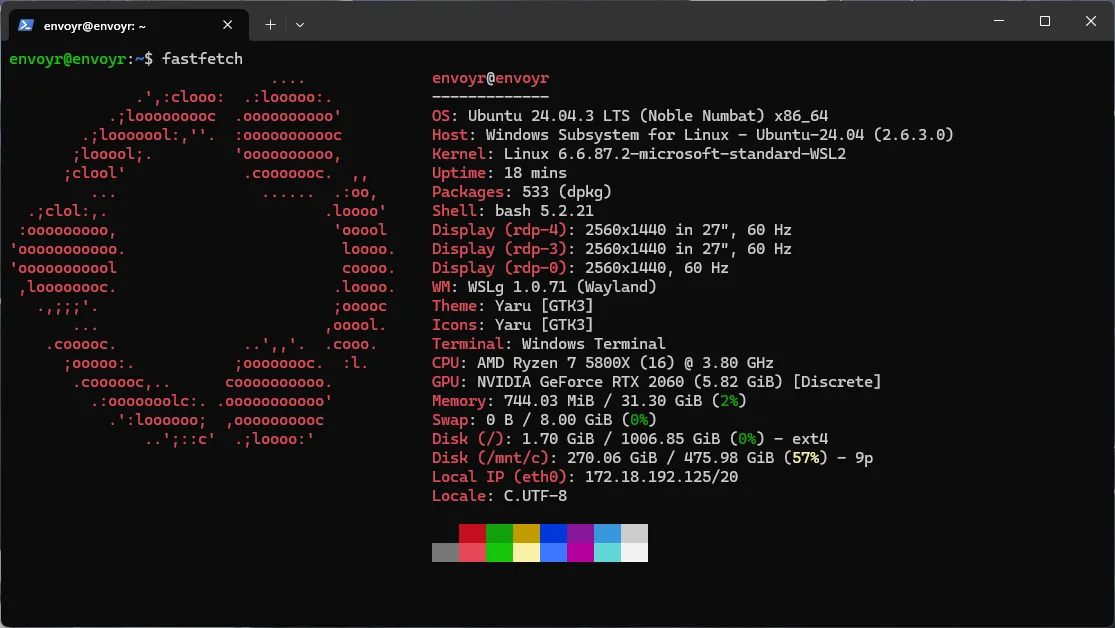
With the Microsoft Store version of WSL, a long-awaited feature is finally available: systemd support. This brings WSL much closer to a real Linux environment and allows you to manage services in a clean, predictable way—without hacks or custom scripts. In this post, I’ll walk you through the prerequisites, show you how to enable systemd in your WSL distribution, and explain how to verify that everything is working as expected. Perfect if you’re using WSL in a professional setup and want behavior that closely matches a native Linux system.
This feature should be generally available and no customisation should be required anymore.
Ensuring you are on the right WSL version
This change is only available in the Microsoft Store version of WSL version 0.67.6 and higher. You can check your version number by running wsl --version. If that command fails then you are running the in-Windows version of WSL and need to upgrade to the Store version.
Set the systemd flag set in your WSL distro settings
You will need to edit the wsl.conf file to ensure systemd starts up on boot.
Add these lines to the /etc/wsl.conf (note you will need to run your editor with sudo privileges, e.g: sudo nano /etc/wsl.conf):
[boot]
systemd=true
And close out of the nano editor using CTRL+S to save and CTRL+X to exit.
Final steps
With the above steps done, close your WSL distro Windows and run wsl.exe --shutdown from PowerShell to restart your WSL instances. Upon launch you should have systemd running. You can check this with the command systemctl list-unit-files --type=service which should show your services’ status.
Reference: Systemd support is now available in WSL!